How to import models into your map
| Step By Step Tutorial: How to Import Models In Your Map (TFT) |
- You first need to download a Model from this page. As an example we take the Goblin Blademaster Model from exN.
Download this Model: GoblinPraetorian.zip (743.8 kilobytes)
-
You have downloaded the zip archive on your harddrive and now need to extract all files:
If you compare the paths of the files in the folder with the ones on the webpage, you notice they are alike: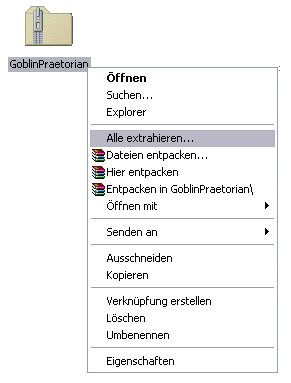
Right-Click the zip file and choose "Extract All" from the Menu.
You alternatively can use WinRAR or WinZip to extract all files.
After you extracted all file you should have the following:
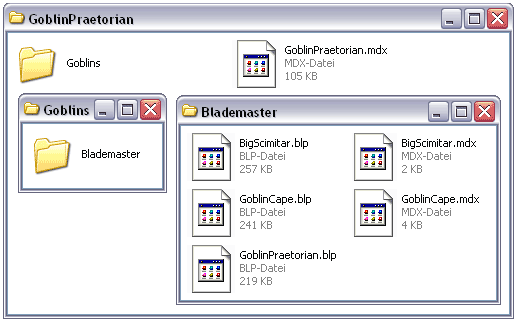
Attached Models: 2 Model 1: Goblins\Blademaster\BigScimitar.mdx Model 2: Goblins\Blademaster\GoblinCape.mdx Number of Skins: 7 Skin 1: Goblins\Blademaster\GoblinPraetorian.blp Skin 2: Textures\Roman1.blp Skin 3: Textures\Sparkle_Anim.blp Skin 4: Textures\Clouds32_anim.blp Skin 5: Textures\gutz.blp Skin 6: Goblins\Blademaster\BigScimitar.blp Skin 7: Goblins\Blademaster\GoblinCape.blp -
Now you open your map in World Editor and go to the Import Manager (F12 key).
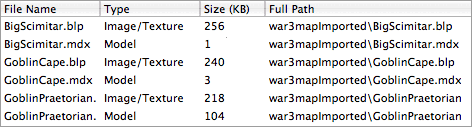
There you import all files from the zip file. In our case six files:
-
You propably noticed that the imported files all show a path like "war3mapImported\BugScimitar.blp". This is wrong and you need to adjust all paths.
The main model file is the "GoblinPraetorian.mdx". This model dont need a specific path, so you can leave it the way it is now: "war3mapImported\GoblinPraetorian.mdx".
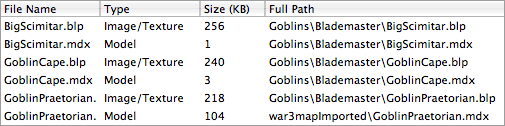
The other five files you rename exactly like displayed on the website:
To edit a path of an imported file you double click it and then check the "Use custom path" checkbox. Now enter the correct path.
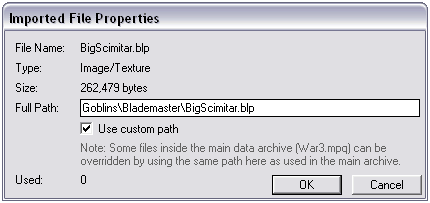
war3mapImported\BigScimitar.mdx --> Goblins\Blademaster\BigScimitar.mdx
war3mapImported\GoblinCape.mdx --> Goblins\Blademaster\GoblinCape.mdx
war3mapImported\GoblinPraetorian.blp --> Goblins\Blademaster\GoblinPraetorian.blp
war3mapImported\BigScimitar.blp --> Goblins\Blademaster\BigScimitar.blp
war3mapImported\GoblinCape.blp --> Goblins\Blademaster\GoblinCape.blp
Now your import manager should look like this:
- The World Editor wont recognize your model yet. You must save your map first and quit World Editor. Now start World Editor up again and load your map.
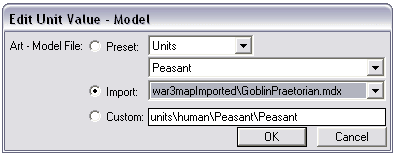
- Now you can assign the goblin model to a unit in the object editor.
Darky27